How to Connect Docker Apps Like Open WebUI to Ollama
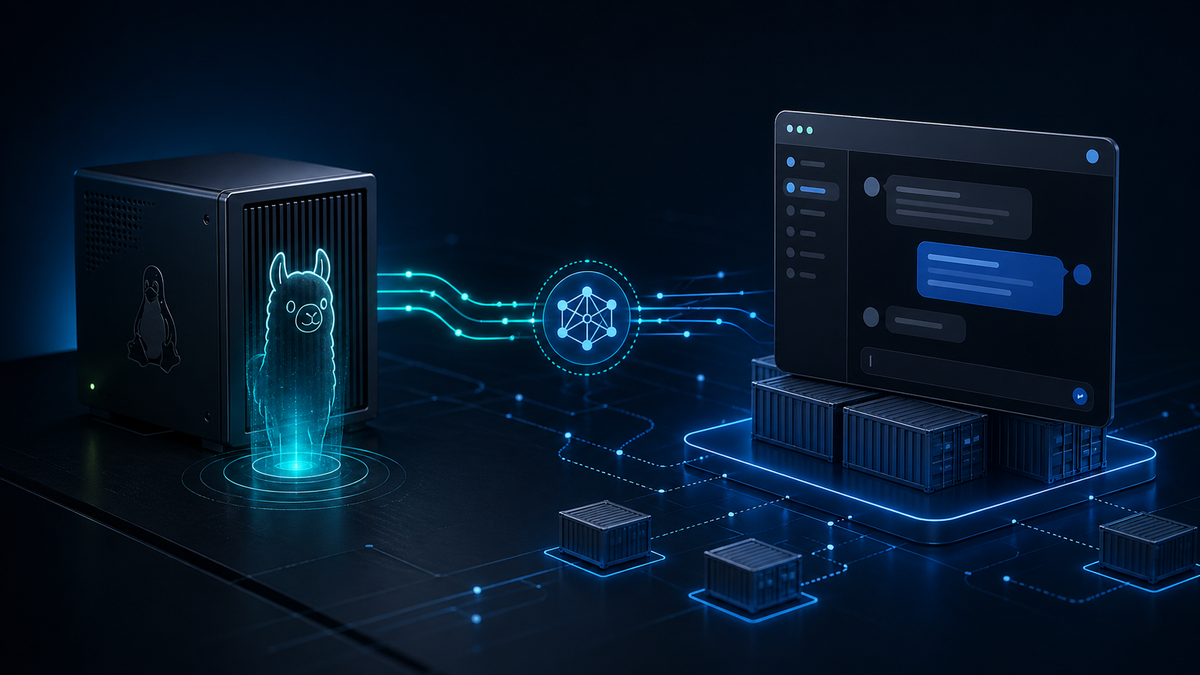
When Ollama is installed directly on a Linux host and an application is running inside Docker, the Docker container may not be able to reach Ollama by default.
This commonly affects apps such as Open WebUI, n8n, and other Docker-based tools that need to connect to the Ollama API.
The issue is usually not that Ollama is broken. The issue is that Ollama listens on localhost by default, and localhost means something different inside a Docker container.
This guide shows how to make Ollama reachable from Docker apps by binding Ollama to the host machine's LAN IP address and then configuring the Docker app to use that address.
The Problem
By default, Ollama listens on:
127.0.0.1:11434
That works from the host machine itself. For example, this may work normally on the Linux host where Ollama is installed:
ollama list
You may also be able to test the Ollama API locally with:
curl http://localhost:11434/api/tags
However, if Open WebUI, n8n, or another app is running inside Docker, localhost no longer refers to the host machine. From inside the container, localhost refers to the container itself.
That means a Docker app trying to connect to this URL will likely fail:
http://localhost:11434
The Docker app needs a way to reach the Ollama service running on the host.
The Working Approach Used in This Guide
In my setup, the reliable working path was:
Open WebUI container
→ http://192.168.1.x:11434
→ Ollama listening on the host LAN IP
The important pieces were:
- Configure Ollama to listen on the host machine's LAN IP address.
- Configure Open WebUI, from its admin settings, to use that LAN IP as the Ollama API URL.
- Confirm the connection from inside the container.
In Open WebUI, go to:
Settings > Connections > Manage Ollama API Connections
Enter the actual LAN IP address of the machine running Ollama.
In my case, the Open WebUI Ollama API connection was set to:
http://192.168.1.x:11434
This setting is made inside Open WebUI. It is not added to the docker run command and is not configured manually from inside the container. Although my docker run command includes --add-host=host.docker.internal:host-gateway, my Open WebUI Ollama connection does not use host.docker.internal. It uses the LAN IP address configured in the Open WebUI admin panel.
Configure Ollama to Listen on the Host LAN IP
On Linux systems where Ollama is installed as a systemd service, you can configure the Ollama host binding with the OLLAMA_HOST environment variable.
Instead of editing the main service file directly, create a systemd override:
sudo systemctl edit ollama
Add the following content:
[Service]
Environment="OLLAMA_HOST=192.168.1.x:11434"
Replace 192.168.1.x with the actual LAN IP address of the machine running Ollama.
Save and exit the editor.
Then reload systemd and restart Ollama:
sudo systemctl daemon-reload
sudo systemctl restart ollama
Verify Ollama on the Host
First, confirm that Ollama is running:
systemctl status ollama
Then test the API from the host:
curl http://192.168.1.x:11434/api/tags
Replace 192.168.1.x with the actual LAN IP address of the machine running Ollama.
You can also confirm which address Ollama is listening on:
sudo ss -ltnp | grep 11434
If Ollama is bound to the LAN IP, you should see output showing something like:
192.168.1.x:11434
That confirms Ollama is listening on the host LAN IP rather than only on 127.0.0.1.
Verify the Connection from Inside a Docker Container
Before configuring a specific app, test the connection from a temporary Docker container.
sudo docker run --rm curlimages/curl:latest \
  curl http://192.168.1.x:11434/api/tags
If this returns JSON containing your available Ollama models, Docker can reach Ollama on the host.
The --rm option removes only the temporary test container after the command finishes. It does not delete your Docker images, volumes, or existing containers.
Connect Open WebUI to Ollama on the Host
Here is an example Open WebUI container command:
sudo docker run -d \
  -p 3000:8080 \
  --add-host=host.docker.internal:host-gateway \
  --gpus all \
  -v open-webui:/app/backend/data \
  --name open-webui \
  --restart always \
  ghcr.io/open-webui/open-webui:main
NOTE: The
--gpus alloption is only needed if your setup requires GPU access from the Open WebUI container. It is not required solely for connecting Open WebUI to Ollama.
In Open WebUI, go to the Ollama API connection settings and configure the Ollama URL as:
http://192.168.1.x:11434
Again, replace 192.168.1.x with the actual IP address of the host running Ollama.
In my working setup, this LAN IP method is what allowed Open WebUI to connect to Ollama.
About host.docker.internal
The Open WebUI command above includes this option:
--add-host=host.docker.internal:host-gateway
That option allows the container to resolve:
host.docker.internal
back to the Docker host gateway.
Some setups use this URL for the Ollama API connection:
http://host.docker.internal:11434
However, in my tested setup, this was not the working path. I confirmed that this failed from inside the Open WebUI container:
curl http://host.docker.internal:11434/api/tags
The working path was instead:
curl http://192.168.1.x:11434/api/tags
That means the --add-host=host.docker.internal:host-gateway option may be useful for other host-access scenarios, but it was not the part making my Open WebUI-to-Ollama connection work.
The key point is this: configure your Docker app to use an address that actually works from inside the container.
What 0.0.0.0 Means
Another possible Ollama setting is:
[Service]
Environment="OLLAMA_HOST=0.0.0.0:11434"
The address 0.0.0.0 means Ollama is listening on all available network interfaces.
This can be convenient because it allows Docker containers, and potentially other computers on the network, to reach Ollama. However, 0.0.0.0 is a listening address. It is not the address you normally enter into another app.
Other apps should connect to a real reachable address, such as:
http://192.168.1.x:11434
Binding to a specific LAN IP address is more restrictive than binding to all interfaces:
[Service]
Environment="OLLAMA_HOST=192.168.1.x:11434"
This is the method used in this guide.
Security Warning
Be careful when exposing Ollama beyond localhost.
If Ollama listens on 0.0.0.0:11434, it may be reachable from more than just your local machine. Depending on your network and firewall configuration, other devices on the LAN, VPN interfaces, or other network paths may be able to reach the Ollama API.
Binding Ollama to a specific LAN IP address can reduce exposure compared to listening on all interfaces, but it can still make Ollama reachable from other devices on the same network.
For a more controlled setup, consider using firewall rules to restrict which machines can connect to port 11434.
Optional: Docker Bridge Address
In some Linux Docker setups, the default Docker bridge gateway is:
172.17.0.1
You may see examples that bind Ollama to this address:
[Service]
Environment="OLLAMA_HOST=172.17.0.1:11434"
This can allow containers on Docker's default bridge network to reach Ollama without exposing the service to the entire LAN.
However, this approach depends on your Docker network configuration. It may not work the same way with Docker Compose networks, custom bridge networks, rootless Docker, Docker Desktop, or systems where the bridge address is different.
If you use this method and host-side Ollama commands stop working, that may be because the Ollama CLI is still trying to connect to 127.0.0.1:11434.
You can test with an explicit host value:
OLLAMA_HOST=172.17.0.1:11434 ollama list
For my setup, the LAN IP method was easier to verify and document.
Troubleshooting Checklist
If your Docker app still cannot connect to Ollama, check the following items.
Confirm Ollama Is Running
systemctl status ollama
Confirm the Ollama API Works on the Host
curl http://192.168.1.x:11434/api/tags
Confirm Ollama Is Listening on the Expected Address
sudo ss -ltnp | grep 11434
You should see Ollama listening on an address that your Docker container can reach, such as the host's LAN IP.
Confirm the Docker App Is Not Using localhost
Inside a Docker container, this is usually wrong:
http://localhost:11434
Use the host machine's LAN IP instead:
http://192.168.1.x:11434
Test from Inside the App Container
For Open WebUI, you can test from inside the running container:
sudo docker exec -it open-webui bash
Then run:
curl http://192.168.1.x:11434/api/tags
If curl is not available inside the container, you may need to test with another available tool or use a temporary curl container instead:
sudo docker run --rm curlimages/curl:latest \
  curl http://192.168.1.x:11434/api/tags
Restart the Docker App
After changing the Ollama connection URL, restart the Docker container or Docker Compose stack.
For Docker Compose:
docker compose down
docker compose up -d
For a standalone container:
docker restart container_name
Replace container_name with the actual container name.
Summary
When Docker apps such as Open WebUI cannot connect to Ollama, the issue is often caused by Ollama listening only on localhost.
The working approach documented here is:
- Configure Ollama to listen on the host machine's LAN IP address.
- Restart the Ollama systemd service.
- Configure the application running inside Docker to use
http://192.168.1.x:11434as the Ollama API URL. - Test the connection from inside Docker.
- Avoid using
localhostfrom inside the container unless Ollama is running in the same container. - Restrict exposure with a specific bind address or firewall rules where appropriate.