Fix Windows “Choose Your Keyboard Layout” Boot Loop
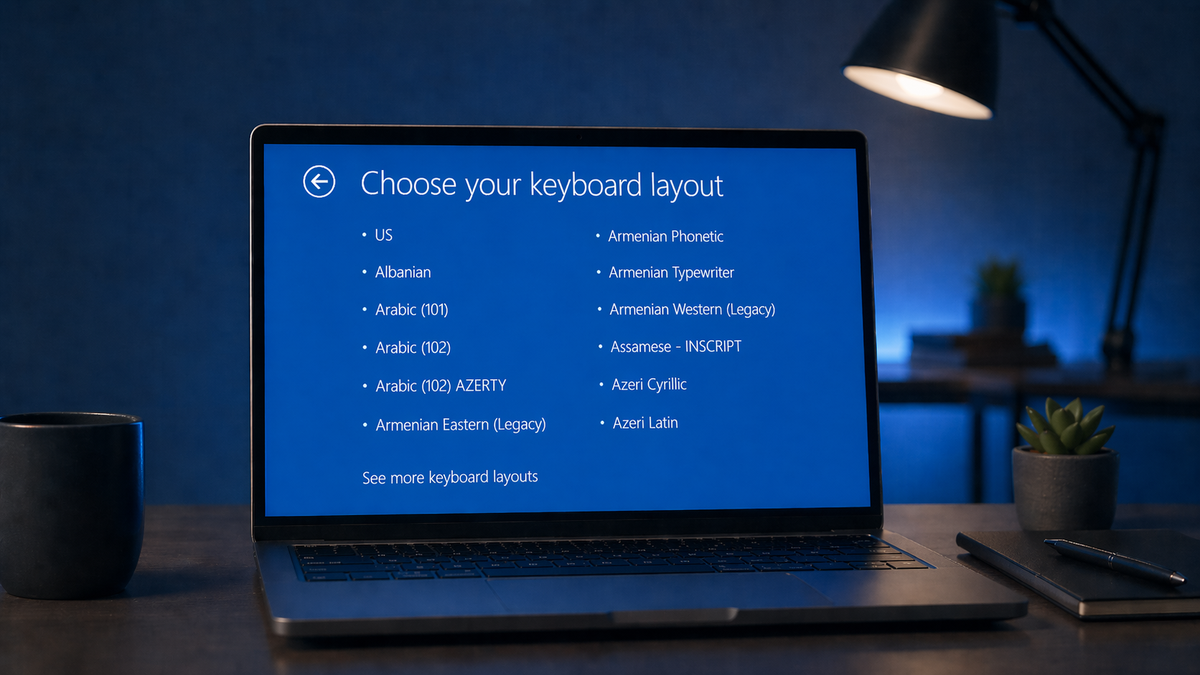
When a Windows system boots to the "Choose your keyboard layout" screen instead of loading normally, it usually means the computer has entered the Windows Recovery Environment (WinRE) because startup failed. One possible cause is damaged boot files or a corrupted BCD store.
This guide walks through a practical recovery path, starting with the least invasive step and then moving to manual boot file repair if needed.
Try a hard reset first
Before making boot-related changes, rule out a temporary hardware or startup-state issue.
- Disconnect all peripheral devices such as:
- USB drives
- Mouse and/or keyboard
- Webcams
- Disconnect the AC adapter if applicable.
- Press and hold the power button for 15 seconds.
- Reconnect power and start the system again.
If the system still returns to the recovery screen, continue with the repair options below.
Try Startup Repair
From the recovery screen, select:
Troubleshoot > Advanced Options > Startup Repair
If Startup Repair does not resolve the issue, rebuild the boot files manually.
Rebuild boot files with BCDBoot
BCDBoot (bcdboot.exe) is a Windows command-line tool used to create or repair boot files and rebuild the Boot Configuration Data (BCD) store.
From the WinRE screen, go to:
Troubleshoot > Advanced Options > Command Prompt
1. Identify the EFI System Partition
In Command Prompt, run:
diskpart
list vol
Look for a partition with these characteristics:
- FAT32
- Typically 100 MB to 260 MB
- Labeled or recognizable as the EFI System Partition
2. Assign a drive letter to the EFI partition
Still in DiskPart, run:
select vol <number>
assign letter=Z
exit
Replace <number> with the volume number of the EFI partition.
3. Rebuild the boot files
Run:
bcdboot C:\Windows /s Z: /f UEFI
Important: In WinRE, the Windows installation is not always mounted as
C:. Confirm the correct Windows drive letter before running the command.
If you receive a BFSVC warning
In this case, the command returned the following warning:
BFSVC Warning: System BCD store is corrupt. Boot files successfully created.
This indicates that the existing BCD store is damaged, but Windows was still able to copy the required boot files.
To continue rebuilding the boot configuration, run:
cd /d Z:\EFI\Microsoft\Boot
bcdboot C:\Windows /s Z: /f UEFI
This creates a fresh BCD store in the EFI boot path.
Verify the boot entries
To verify that the boot configuration now exists, run:
bcdedit /enum all
Look for a Windows Boot Manager section that includes:
identifier {bootmgr}
If that entry is present and the commands completed successfully, reboot the system.
Reboot and test
After completing the repair steps, restart the computer.
In this case, the system booted normally after the boot files and BCD store were rebuilt.
Notes
- This procedure is intended for UEFI-based systems.
- Be careful to identify the correct EFI partition before assigning a drive letter.
- If
bcdbootfails, verify both the Windows partition letter and the EFI partition before proceeding. - If the system still does not boot, additional repair steps may be required, such as checking disk health or running offline system file repair.
Summary
If Windows boots into the "Choose your keyboard layout" recovery screen, the system may have corrupted boot files or a damaged BCD store. A hard reset and Startup Repair are good first steps. If they do not resolve the issue, rebuilding the boot files with bcdboot from WinRE can restore normal startup.