How to Fix Linux Mint Getting Stuck at “Removing all DKMS modules” During Updates
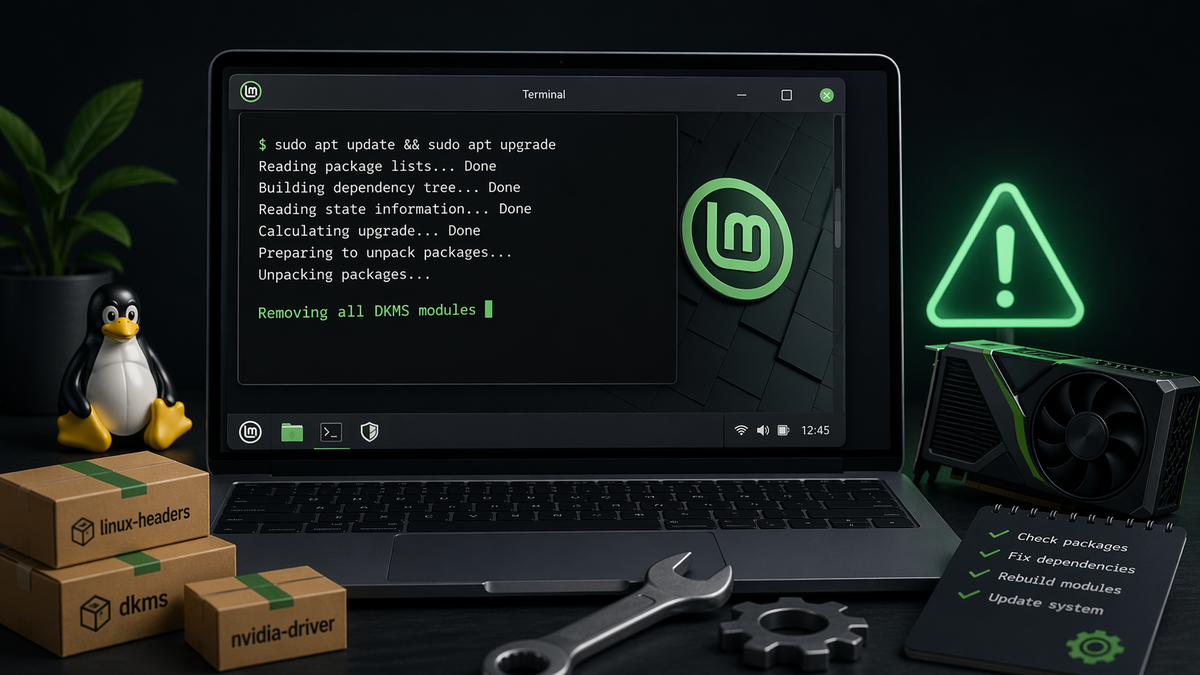
What to do when apt or dpkg hangs while removing DKMS modules during an update.
While attempting to update Linux Mint via terminal, the process hung at the line "Removing all DKMS modules". After stopping the update, I found that broken NVIDIA driver and DKMS packages were preventing dpkg from completing normally. This guide walks through the steps I used to identify the package problem, repair it, reinstall the affected packages, and successfully finish the update.
Note: Some of the commands below use force-removal options in
dpkg. These are recovery steps for a broken package state and should be used carefully.
After I canceled updates, I attempted to run this command as a fix:
sudo dpkg --configure -a
This resulted in the following error: "dpkg frontend is locked by another process". In order to remove the lock I had to run the following command until I no longer received the ‘locked’ error:
sudo rm -v /var/lib/dpkg/locksudo rm -v /var/lib/dpkg/lock-frontend
Running sudo dpkg –configure -a resulted in discovering another two errors:
dpkg: error processing package nvidia-driver-390 (--configure):
 dependency problems - leaving unconfigured
dpkg: error processing package nvidia-dkms-390 (--configure):
 package is in a very bad inconsistent state; you should
 reinstall it before attempting configuration
Errors were encountered while processing:
 nvidia-driver-390
 nvidia-dkms-390
I forced the removal of the problem NVIDIA driver package:
sudo dpkg --remove --force-remove-reinstreq nvidia-driver-390
I also attempted to force the removal of the problem NVIDIA DKMS package:
sudo dpkg --remove --force-remove-reinstreq nvidia-dkms-390
However, this command also resulted in getting stuck on the line "Removing all DKMS modules" so I had to execute CTRL + C again to cancel.
I executed the following command from earlier with no problems this time:
sudo dpkg --configure -a
I then ran the following command:
sudo apt -f install
The output showed various errors, and so because I was not sure what the status of nvidia-dkms-390 was, I tried reinstalling it:
sudo apt install nvidia-dkms-390 --reinstall
This result was successful. I subsequently decided to make sure I had the latest updates, then uninstall the NVIDIA driver and DKMS packages so I could reinstall them and make sure everything was corrected and cleaned up.
sudo apt updatesudo dpkg --remove --force-remove-reinstreq nvidia-driver-390sudo dpkg --remove --force-remove-reinstreq nvidia-dkms-390
I ran a previous command again correct any potential problems:
sudo dpkg --configure -a
I reinstalled the NVIDIA DKMS and driver packages:
sudo apt install nvidia-dkms-390 --reinstall
sudo apt install nvidia-driver-390 --reinstall
I checked for updates related to display drivers, and seeing none, I ended troubleshooting. I also launched the Driver Manager in Linux Mint to verify that the NVIDIA driver was showing up and selected, which it was.
As a final step as well as to check that everything was resolved, I ran another update (successfully this time) with the following commands:
sudo apt update
sudo apt upgrade
The update was successful, with the system gaining the latest updates and the issues with removing DKMS modules and problematic packages resolved.