Dell iDRAC Starter Checklist
Overview
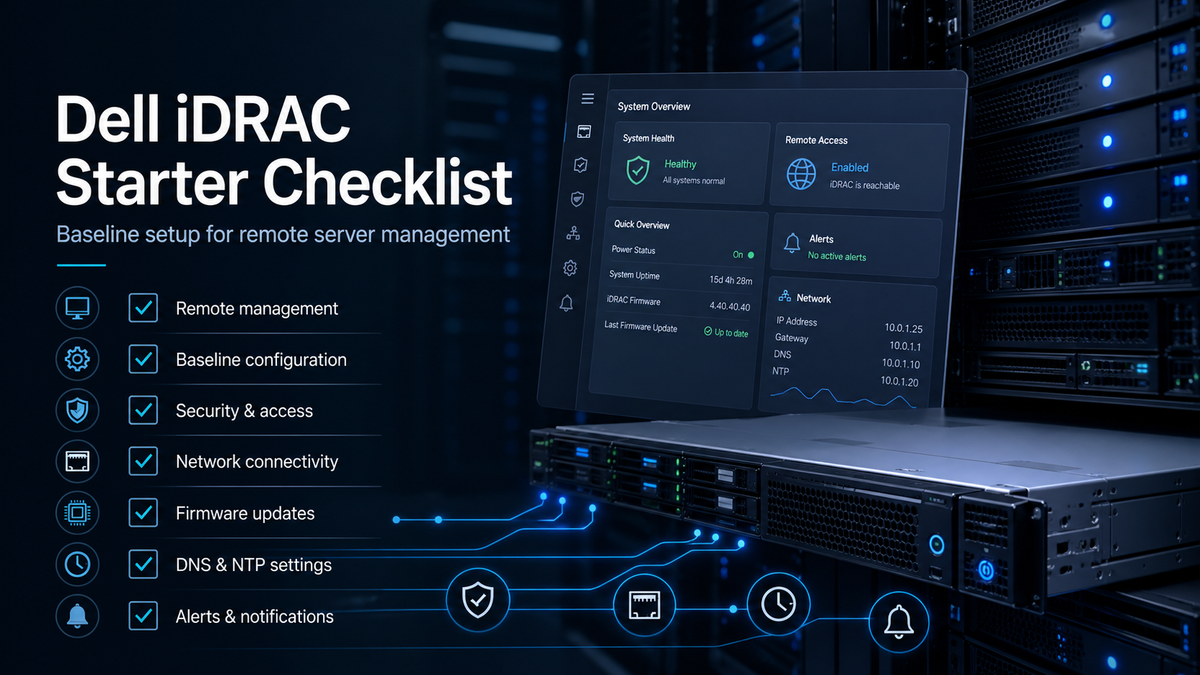
The purpose of this document is to provide a basic starter checklist for setting up Dell iDRAC.
This checklist is intended to help verify that iDRAC is connected, accessible, updated, secured at a basic level, and documented. It is not meant to cover advanced iDRAC configuration or every available setting.
Scope
What this checklist is:
A reminder checklist of items to verify during a basic Dell iDRAC setup.
What this checklist is not:
A click-by-click guide or an advanced iDRAC configuration guide.
Prerequisites
This checklist assumes that you have a Dell server racked and ready for initial iDRAC setup.
Checklist
Network Access
[ ] Connect the iDRAC Ethernet port to the network switch.
[ ] Work with the Network team to verify and allow LAN connectivity.
[ ] Determine whether iDRAC should use a static IP address or DHCP for long-term use.
[ ] Configure the DNS name inside iDRAC.
[ ] Log in remotely to the iDRAC dashboard to verify access.
Initial Security Baseline
[ ] Set the iDRAC password: F2 > iDRAC Settings > User Configuration.
[ ] Review default and unused accounts; disable or remove accounts that are not needed.
[ ] Store the strong admin credential securely in the team password manager.
[ ] Verify HTTPS access is enabled.
[ ] Document the certificate warning if using the default self-signed certificate.
[ ] Limit access to admin networks.
Firmware and Server Integration
[ ] Update the iDRAC firmware.
[ ] Record the iDRAC firmware version after the update.
[ ] Install the iDRAC Service Module on the Windows Server.
Time, Logs, and Alerts
[ ] Configure NTP and verify that the time is correct.
[ ] Verify that lifecycle and hardware logs are active.
[ ] Configure an alert or notification path for hardware events.
Documentation
[ ] Document the server name.
[ ] Document the server location.
[ ] Document the iDRAC IP address.
[ ] Document the iDRAC DNS name.
[ ] Document ownership or support notes.
Additional Notes
For a basic setup, the most important goals are remote access, secure credential storage, firmware updates, accurate time, logging, and documentation.
The default iDRAC HTTPS certificate may generate a browser warning. This does not necessarily mean HTTPS is disabled. It usually means the browser does not trust the self-signed certificate being presented by iDRAC.
Access to iDRAC should be limited to trusted administrative networks wherever possible. iDRAC provides out-of-band management access to the server, so it should not be treated like a normal user-facing web interface.
Summary
This starter checklist provides a baseline for getting Dell iDRAC connected, accessible, updated, and documented. More advanced items such as directory integration, custom certificates, detailed alerting rules, role-based access, and centralized monitoring can be added later depending on the environment.